
Android: How to Set Up Email in Gmail
This guide will walk you through setting up your email account in the Gmail app on your Android device.
Steps and screen layouts may vary slightly depending on your Android or Gmail app version.
Note: The screenshots are for reference only. Please enter your own account details when following this guide.
Step 1: Open Gmail and Add an Account
Open the Gmail app on your Android device.
Follow the instructions that apply to you:
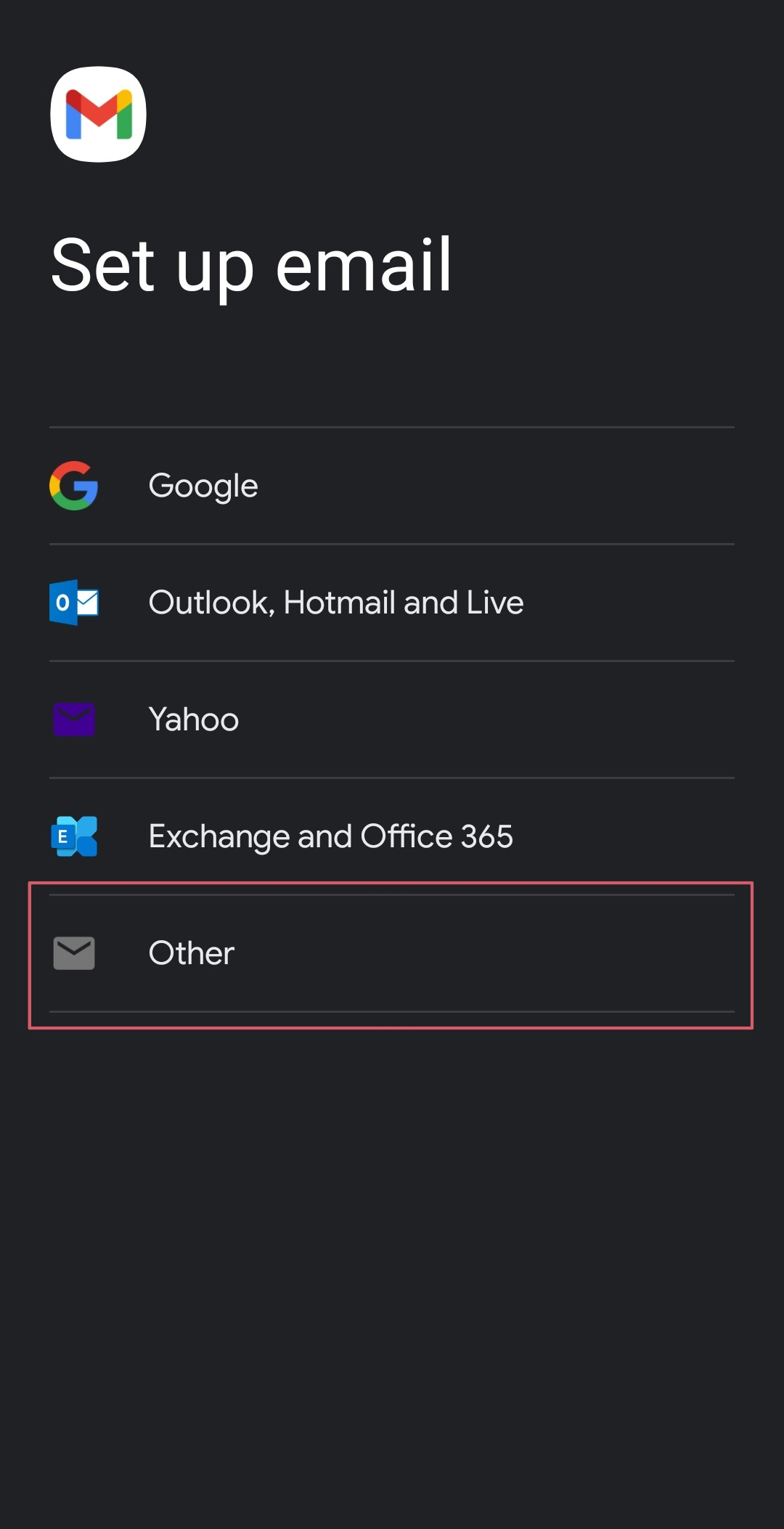
If you're using Gmail for the first time: Select Other to begin adding your email account.
If you already have an account connected: Tap your profile picture or initial in the top-right corner, then select Add another account > Other.
Step 2: Enter Your Email Address
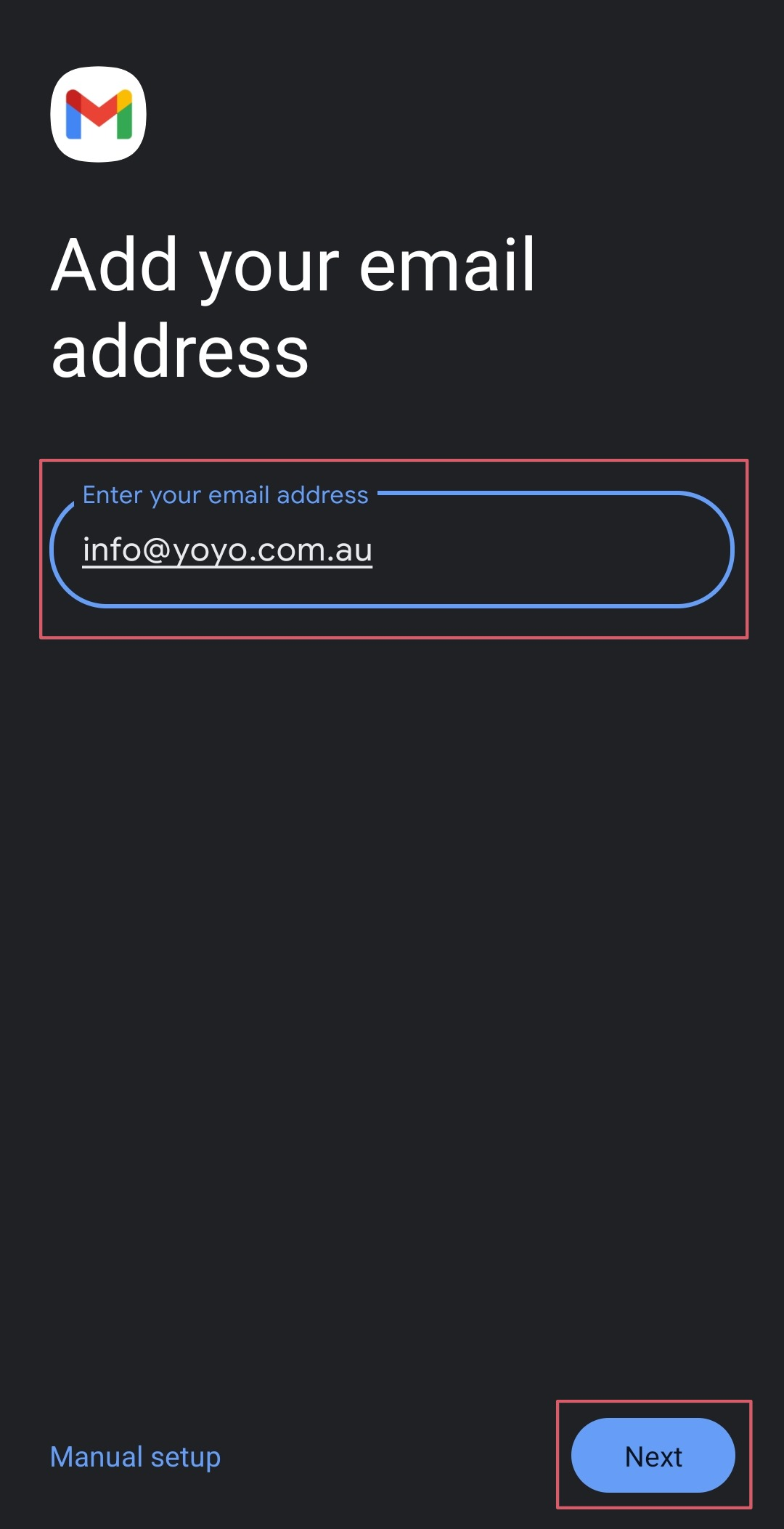
Enter your full email address and tap Next.
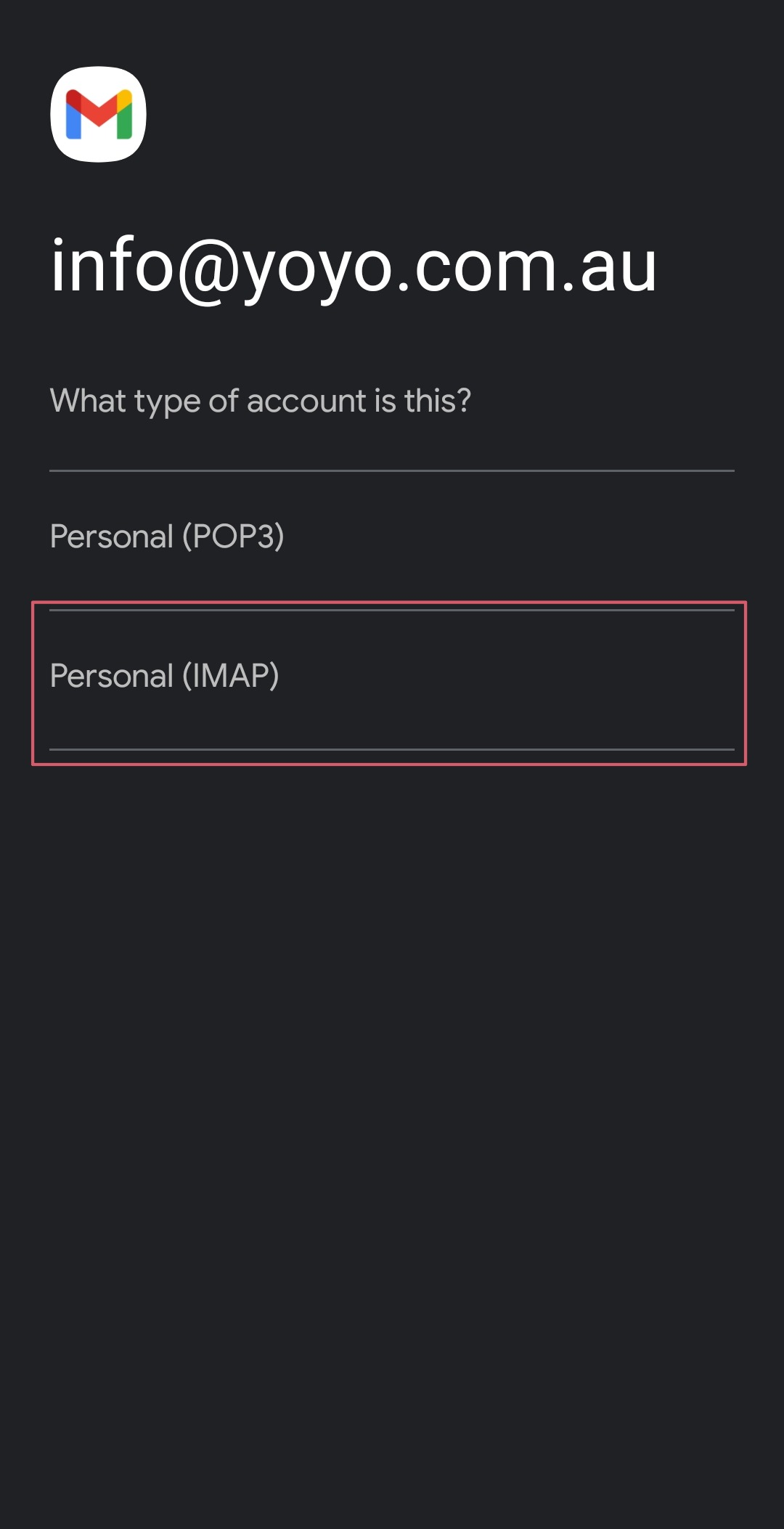
Select Personal (IMAP).
Enter your email account password and tap Next.
Step 3: Configure Your Mail Servers
Enter the following incoming server settings if prompted:
Incoming Mail Server (IMAP)
Server: mail.yourdomain.com.au
Port: 993
Security Type: SSL/TLS
Username: Your full email address.
Password: Your email account password.
Replace yourdomain.com.au with your own domain name.
Tap Next to continue.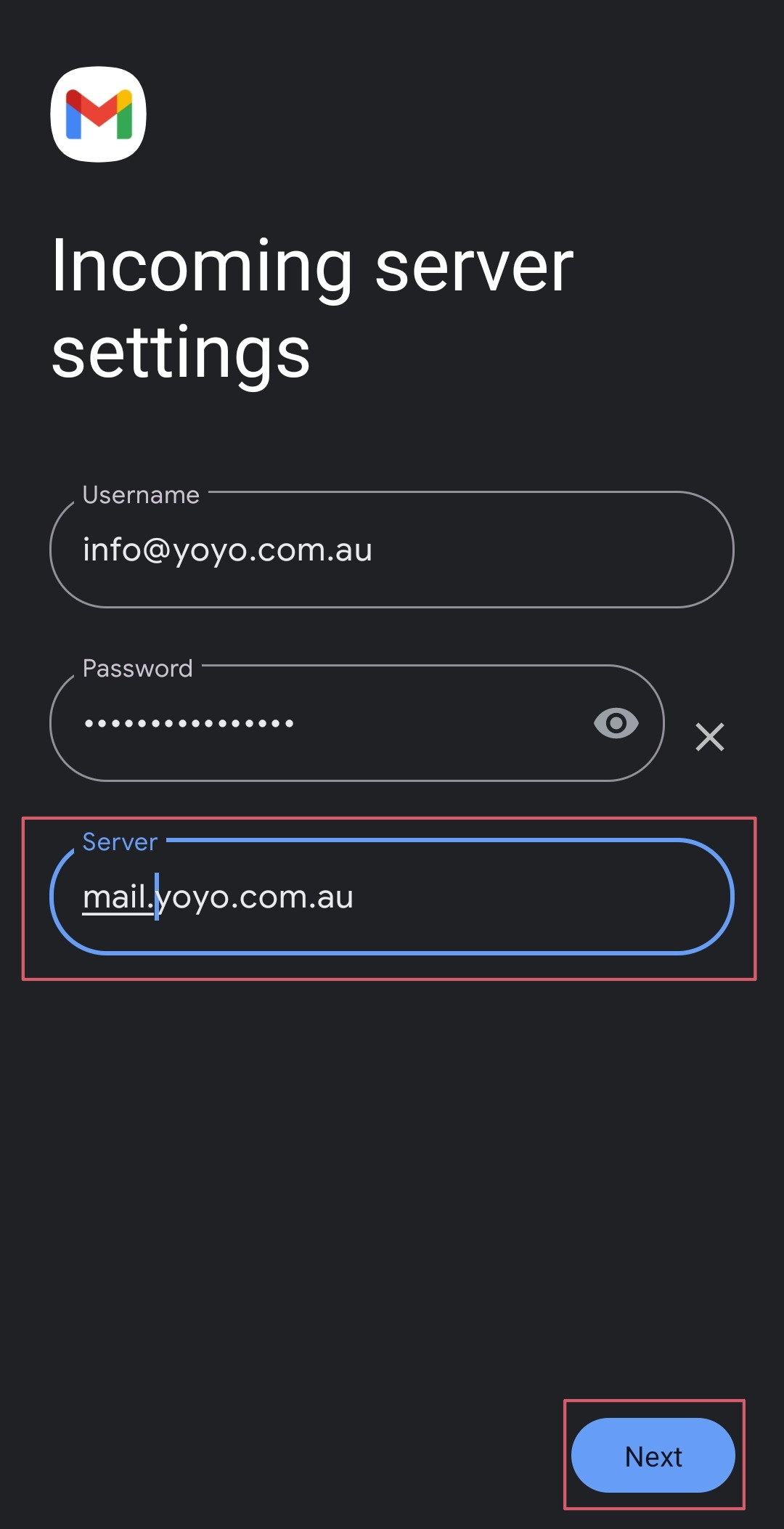
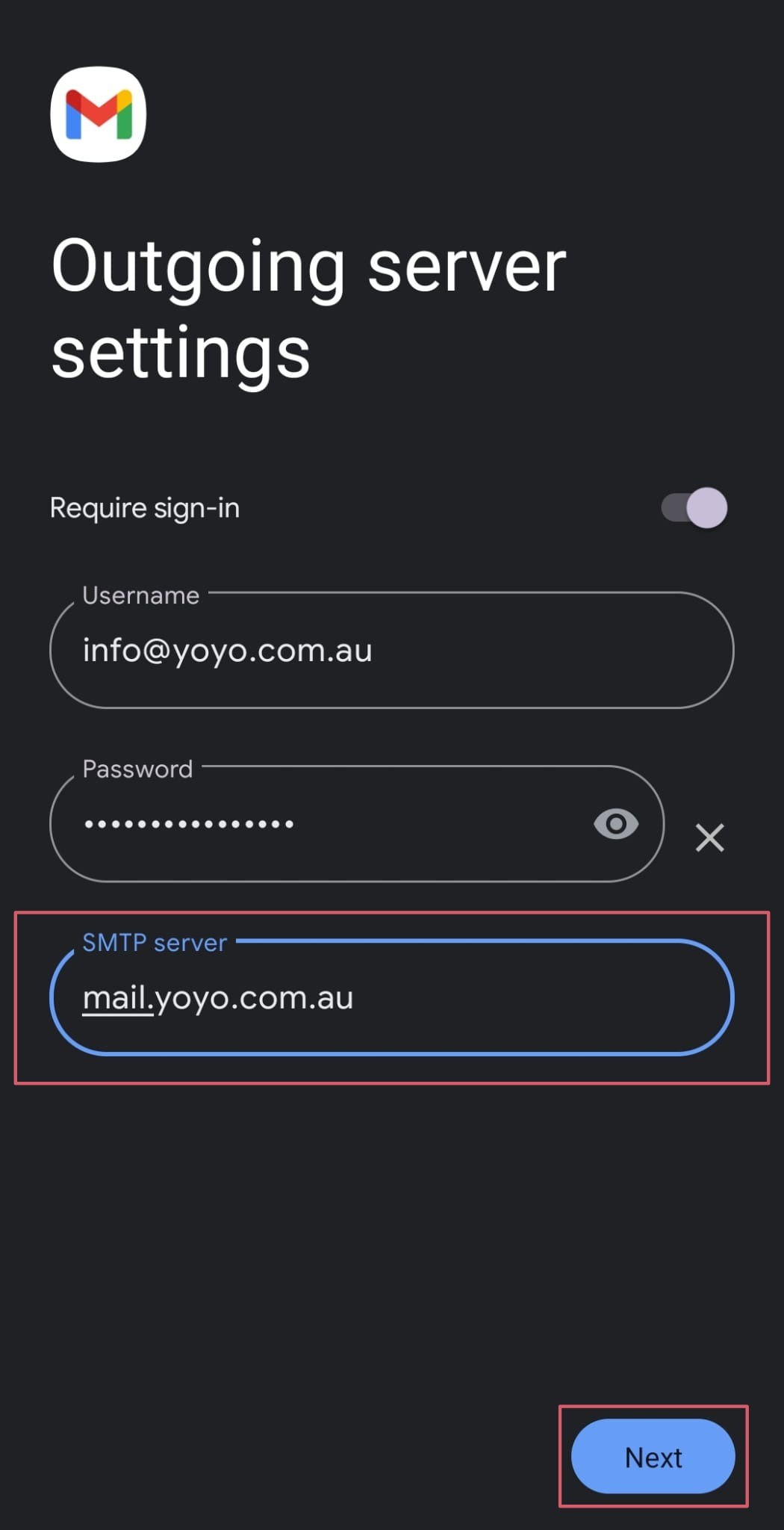
Enter the following outgoing server settings if prompted:
Outgoing Mail Server (SMTP)
SMTP Server: mail.yourdomain.com.au
Port: 465
Security Type: SSL/TLS
Username: Your full email address.
Password: Your email account password.
Replace yourdomain.com.au with your own domain name.
Tap Next to continue.
Step 4: Complete Your Account Setup
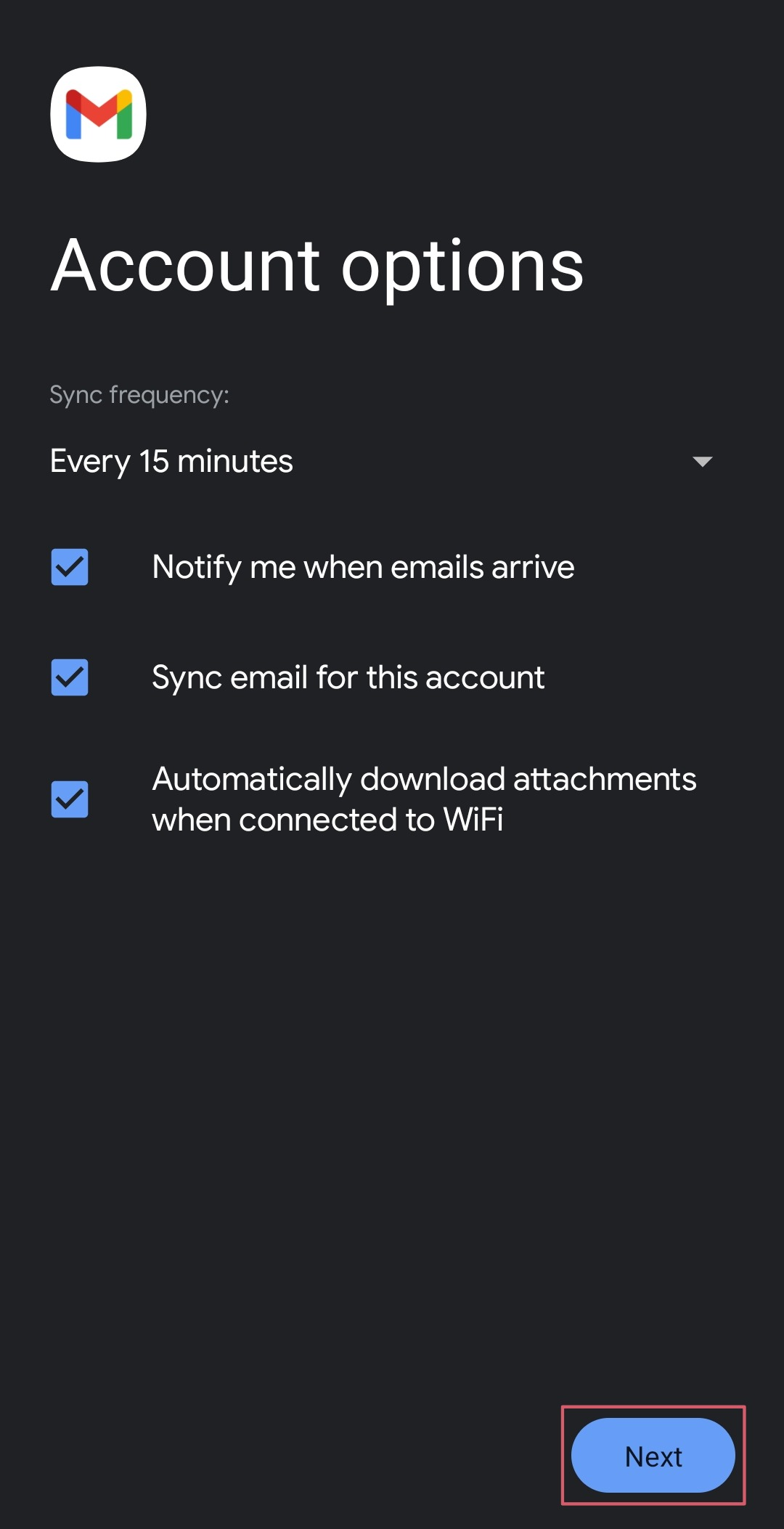
Review the account options and tap Next.
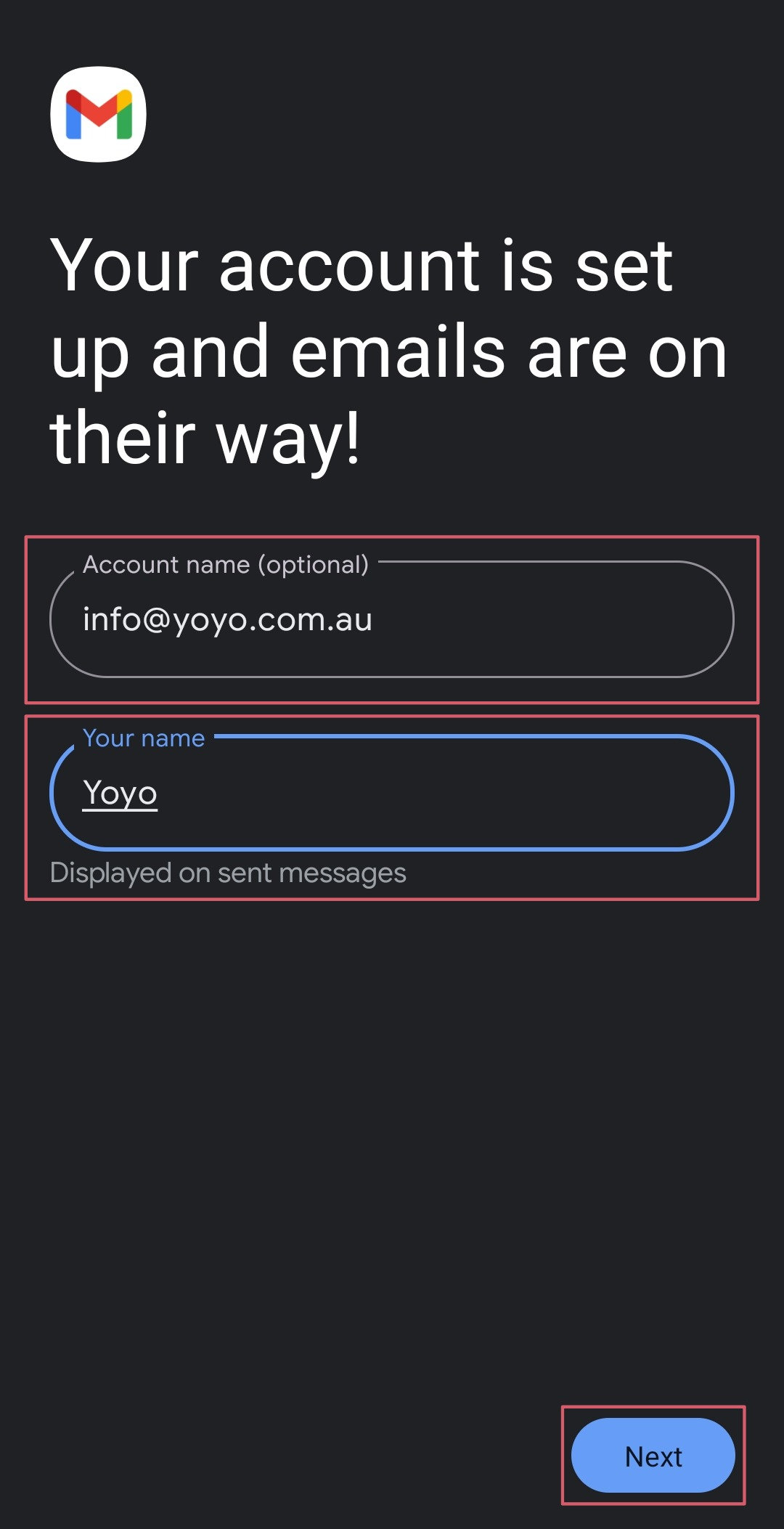
Enter the following details:
Account Name: A label to help you recognise your inbox (e.g. Work Email).
Your Name: The name recipients will see when you send emails (e.g. your business name).
Tap Next to complete the setup.
Setup Complete!
Your email account is now ready to use in the Gmail app on your Android device.
If you need assistance, contact us at support@registry.com.au or call 1300 070 000, Monday to Friday, 9 AM–5 PM.
Registry Australia offers locally based customer support for all your needs.
Hours of 9am - 6pm AEDT, Monday - Friday.